Common Methods for Connecting Instruments to PC
November 17, 2026MR TOOLS Team
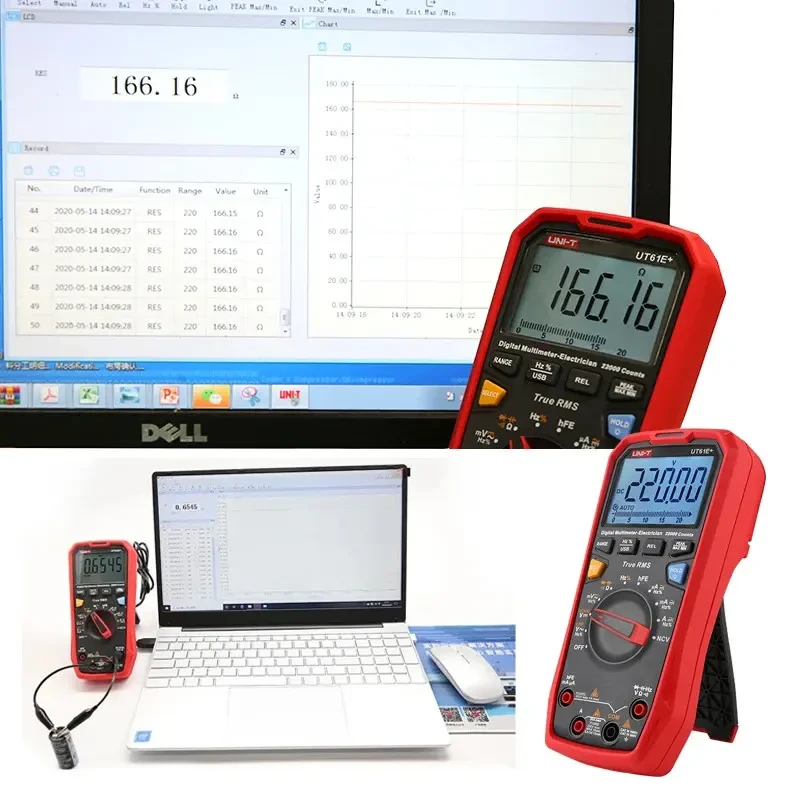
Learn how to easily connect your UNI-T instruments to a PC for data logging and analysis. This step-by-step guide covers the connection methods, required cables, and specific button operations for popular series including UT70, UT71, UT61, UT233, UT395A, and UT612.
Connecting your test instrument to a PC allows you to log data, create trend graphs, and generate professional reports. Below is a step-by-step guide on how to establish communication between your UNI-T meter and the PC software for several popular series.
1. UT70 Series
Install the PC software on your computer.
Connect the original RS232C data cable to the meter and PC.
Open the software and click "Connect".
2. UT71 Series
Install the PC software.
Connect the original USB data cable.
Long-press the "SEND" button on the meter for 2 seconds. A "SEND" icon will appear on the LCD.
Open the software and click "USB Connect".
3. UT61 Series
Install the PC software.
Long-press the "RS232C (USB)" button for 2 seconds until an "S" icon appears on the screen. (Note: For the UT61E model, this step is not required).
Connect the USB data cable to your computer.
Open the software and click "USB Connect".
4. UT233 Series
Install the software and plug in the USB cable.
Turn on the instrument and short-press the "USB" button. A "USB" icon will appear at the top of the screen. (If the button does not respond, press the "MENU" button first, then press "USB").
Open the software and click "Connect".
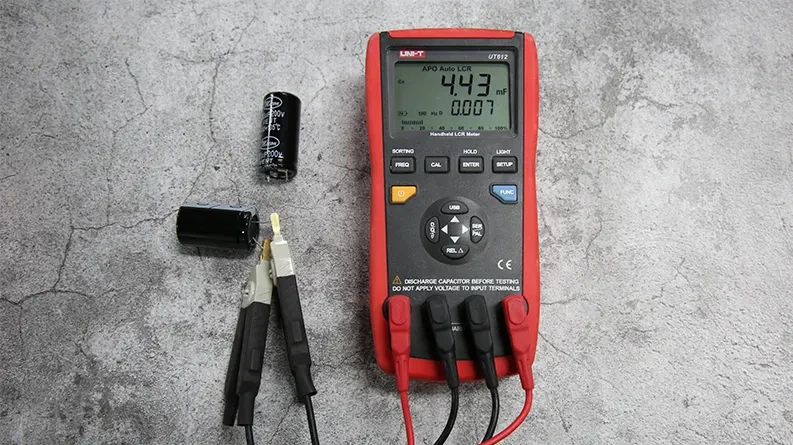
5. UT612 Digital LCR Meter
Turn on the meter and plug in the USB cable.
Short-press the "USB" button on the panel. An "S" symbol will appear in the top left corner.
Open the software and click "Connection".
6. UT395A (Laser Distance Meter)
Install the software and connect the cable.
Important: Ensure there is data saved in the instrument's memory. If the meter is empty, the software will not be able to export anything. Save a test measurement first before connecting.
If you still cannot connect, please check:
Is the USB function activated on the meter's LCD?
Is the software version compatible with your PC's operating system (e.g., Windows 10/11)?
Try a different USB port or a different computer to rule out hardware issues.